
By NaJade · DJ in Bangkok · Published October 27, 2026
This guide is part of DJ software: the complete guide.
The best DJ setup is the one you actually practise on. For a lot of people, that’s the tablet already on the sofa.
I get asked about iPads more than almost any other piece of gear — usually by someone who already owns one and doesn’t want to buy a laptop just to try DJing. The short answer is that an iPad is a genuinely capable DJ machine, as long as you pick the right app, connect your controller properly and understand the two or three things it can’t do as well as a laptop. Here’s the whole setup, start to finish.
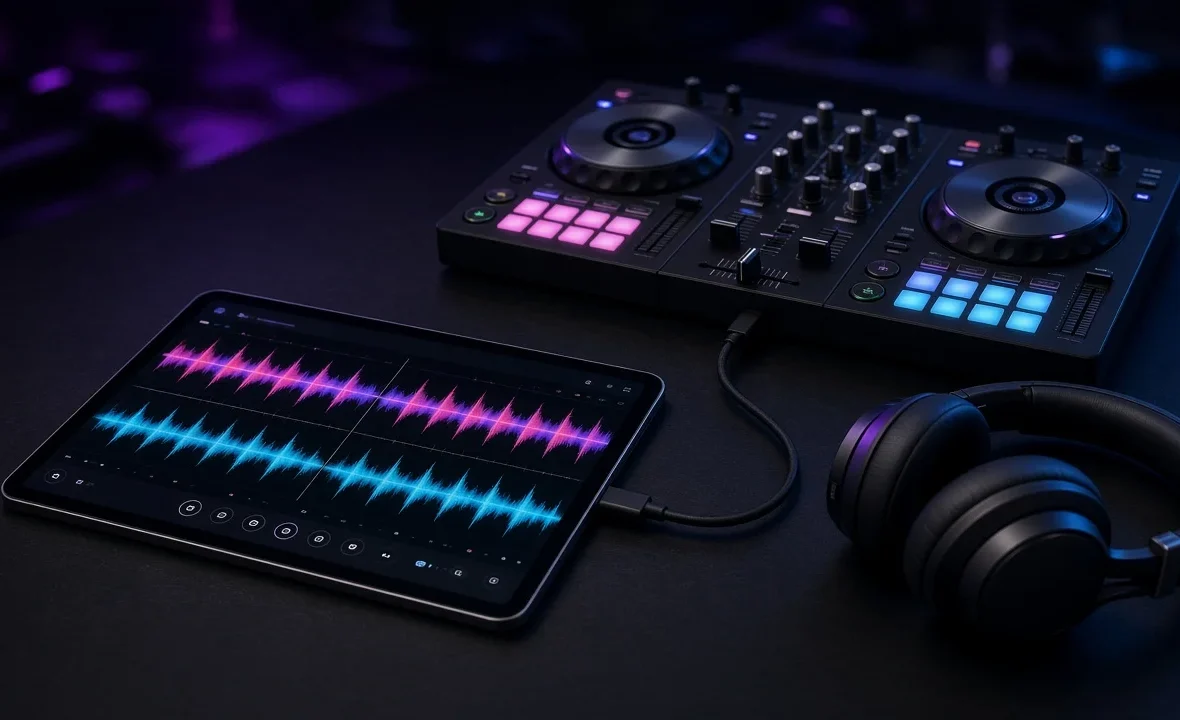
To DJ on an iPad, install a DJ app such as djay or rekordbox for iOS, connect a supported controller by USB-C (or a Lightning camera adapter on older models), plug speakers into the controller and headphones into its cue output. Load tracks from your files or a streaming service and mix as normal.
Which DJ Apps Work on iPad?
Not every desktop DJ program has a tablet version. Serato and Traktor, for example, are desktop-only, so if those are your long-term plan, an iPad is a practice tool rather than your main rig. The apps that matter on iPad right now are:
| App | Cost | Music sources | Best for |
|---|---|---|---|
| djay (Algoriddim) | Free; Pro subscription unlocks the full feature set | Your files, Apple Music, Spotify, TIDAL, SoundCloud, Beatport, Beatsource | Most people — the most complete iPad DJ app |
| rekordbox for iOS | Free plan; paid plans add features | Your files, synced from desktop rekordbox; streaming | Anyone who will eventually play CDJs in clubs |
| WeDJ | Free | Your files | Owners of the Pioneer DJ DDJ-WeGO4 |
| edjing Mix | Free; premium tier | Your files, TIDAL, SoundCloud, Beatport | Casual mixing on the go |
For most people, djay is the default choice. It supports over 100 MIDI controllers out of the box, offers real-time stem separation (Algoriddim calls it Neural Mix) and plugs into the major streaming services. The full feature list and current in-app prices are on the djay App Store listing. If you’re thinking about club gigs later, rekordbox for iOS is worth a look, because it syncs with desktop rekordbox — the same library you’ll eventually export to USB for CDJs. I compare the desktop versions in detail in the djay review and the rekordbox review.
What You Need
- An iPad that runs current software. djay needs iPadOS 15 or later. Any recent iPad, iPad Air or iPad Pro is fine; more storage helps if you keep music offline.
- A DJ controller (optional but strongly recommended). You can mix on the touchscreen, but a two-channel controller with jog wheels teaches you real skills. See the best DJ controllers for beginners.
- The right cable or adapter. USB-C iPads connect straight to most controllers with a USB-C cable. Older Lightning iPads need Apple’s Lightning to USB 3 Camera Adapter.
- Headphones. Closed-back DJ headphones, plugged into the controller rather than the iPad.
- Speakers. Powered speakers connected to the controller’s master output.
Step by Step: Setting Up Your iPad DJ Rig
- Install the app and open it once before connecting anything, so it can finish any first-run setup and library scan.
- Connect the controller by USB-C (or the camera adapter). If your controller needs more power than the iPad supplies, use a powered USB hub or the controller’s own power adapter.
- Check that the app recognises the controller. In djay, supported controllers map automatically; the decks should respond as soon as you move a fader.
- Plug speakers into the controller’s master out and headphones into its headphone socket. The controller’s built-in sound card is what lets you cue privately.
- Load music. Import files from the Files app, sync from desktop software, or log in to a streaming service.
- Set your levels. Keep channel meters out of the red and set the master so it never clips. The basics are in gain staging for DJs.
Then mix exactly as you would on any other setup: cue the next track in your headphones, match the tempo, and bring it in with the EQ and fader. If cueing is new to you, start with how to cue in DJ headphones.
Cueing Without a Controller
This is where iPad DJing trips people up. An iPad has one audio output, so on its own it can’t send the master mix to speakers and a separate cue mix to your headphones. You have three options:
| Method | How it works | Verdict |
|---|---|---|
| Controller sound card | Master and cue outputs come from the controller | The proper solution |
| Split output | App sends master to one ear, cue to the other via a splitter cable | Fine for practice, not for gigs |
| External audio interface | A multi-output interface handles master and cue | Works, but a controller is usually simpler |
If you want the background on why this matters, I wrote a whole piece on whether you need an audio interface for DJing.
Streaming, Stems and the Limits of an iPad
Streaming is the big attraction: millions of tracks with no downloading. But there are trade-offs. You need a reliable internet connection, some streaming sources don’t allow every feature (in djay, Neural Mix stem separation isn’t available on Apple Music or Spotify tracks), and in most cases you can’t record or export streamed tracks for a club USB. I cover the bigger picture in can you DJ with Spotify?.
- Battery and heat. Long sessions with stems and a controller drain the battery fast. Keep the iPad plugged in for anything over an hour.
- Notifications. Turn on Do Not Disturb or Airplane Mode (with Wi-Fi back on for streaming) so nothing pops up mid-mix.
- Library size. Big local libraries eat storage. Keep a focused crate rather than everything you own.
- Club compatibility. No club booth expects an iPad. If you want to play out, plan to move to CDJs or a laptop eventually.
If you already own a laptop, compare this with how to DJ with just a laptop — the workflow is similar, but a laptop gives you more software choice.
A Note From NaJade
My first year of practice was on whatever was in front of me, and that included a tablet on a hotel desk in Chiang Mai with a tiny controller and a pair of earbuds. It wasn’t glamorous, but it kept my hands moving between gigs. The iPad didn’t make me a worse DJ; skipping practice would have. What I’d tell anyone starting this way: get a real controller as early as you can, cue through its headphone output rather than a splitter, and build your library in a way you can carry into rekordbox later. The tablet is a great door into DJing — just make sure it opens onto the same skills you’ll need in a Bangkok booth.
Related: DJ software explained, the djay review, best DJ controllers for beginners, and can you DJ with Spotify?. Official details: rekordbox.com.
Frequently Asked Questions
Can you DJ on an iPad?
What is the best DJ app for iPad?
Can I connect a DJ controller to an iPad?
How do I cue in headphones on an iPad?
Can you use Serato or Traktor on an iPad?
Is an iPad good enough for DJ gigs?
About the Author
NaJade is a Bangkok-based DJ playing progressive house, melodic EDM, pop, and Thai music across clubs, rooftops, and weddings in Thailand. He teaches beatmatching and mixing to beginners both in person in Bangkok and online over Zoom. When he’s not behind the decks, he’s documenting the journey on YouTube, Instagram, and TikTok.