
By NaJade · DJ in Bangkok · Published October 20, 2026
This guide is part of DJ software: the complete guide.
You don’t need a single piece of gear to start learning. You need a laptop and an evening.
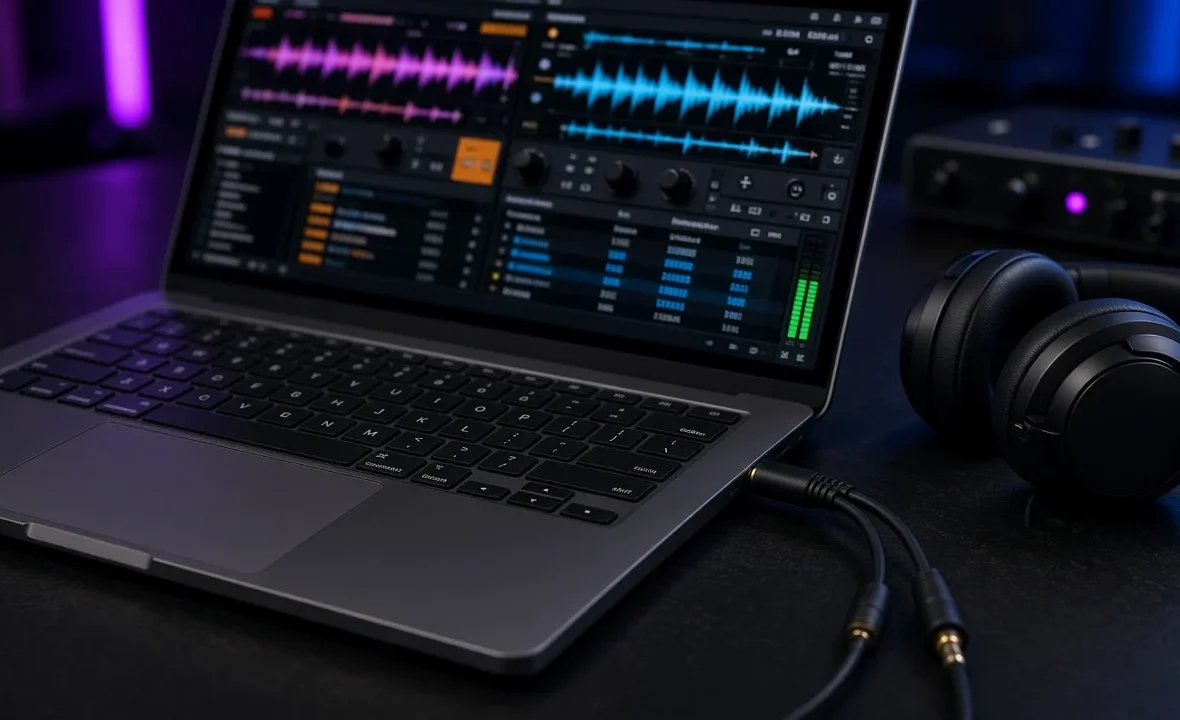
A controller makes DJing easier and more fun, but it isn’t the thing that teaches you to mix. Your ears do that. Every major DJ app now lets you load two tracks, beatmatch and blend using nothing but a keyboard and trackpad, and several of them are free. If you’re saving up for gear, or just want to know whether you’ll enjoy this before spending money, a laptop on its own is a genuine starting point — as long as you know its limits.
Yes, you can DJ with just a laptop. Install a free app that works without hardware — rekordbox Free, Serato DJ Lite’s Practice Mode, Mixxx or VirtualDJ for home use — load two tracks and mix with the keyboard. To cue in headphones, add a DJ splitter cable or a four-output audio interface.
Which DJ Apps Work Without a Controller?
All of these run on a normal laptop with no hardware connected. The differences are price and whether you can pre-listen (cue) in headphones.
| App | Cost without hardware | Headphone cueing on laptop only | Good to know |
|---|---|---|---|
| rekordbox Free | Free | Yes, with a split output | Performance mode works from the computer; a few features (stems, some FX) are locked |
| Serato DJ Lite | Free | No — Practice Mode outputs to one channel | Great for learning beatmatching by ear; no recording |
| Mixxx | Free, open source | Yes, with a splitter cable or interface | Full default keyboard mapping |
| VirtualDJ | Free for home, non-pro use | Yes, “stereo to mono splitter” setting | Paid licence needed once you play paid gigs |
| djay | Free core app (Mac/Windows) | PRO subscription only | Very beginner-friendly interface |
Plan prices change, so check the official pages — rekordbox plans and Serato DJ Lite — before you commit. For deeper comparisons, see the rekordbox review, VirtualDJ review and Serato DJ Lite vs Pro.
The Headphone Problem (and the Two Fixes)
The hard part of laptop-only DJing isn’t control — it’s cueing. In a real setup you hear the next track in your headphones while the crowd hears the current one. A laptop has one headphone socket, so by default both go to the same place.
- A DJ splitter cable. It splits your laptop’s stereo output into two mono signals: master to one plug, cue to the other. Then choose the split-output option in your software. It’s cheap and works, but the sound is mono and the laptop’s built-in audio is basic. Note: an ordinary headphone splitter won’t work — it sends the same signal to both plugs.
- A USB audio interface with four outputs. Send the master to outputs 1–2 (speakers) and the cue to 3–4 (headphones). Proper stereo, better sound, and it stays useful later. More in do you need an audio interface for DJing.
If you have neither, you can still practise. Serato’s Practice Mode is built for exactly that: you learn to judge tempo and phrasing by listening to the mix itself, which is a skill you’ll use forever.
Keyboard Shortcuts Worth Learning First
Clicking on-screen buttons with a trackpad is slow and imprecise. Keyboard shortcuts make laptop mixing feel much closer to real decks. These are the defaults in Mixxx and rekordbox 7 (Performance preset):
| Action | Mixxx (Deck 1 / 2) | rekordbox 7 (Deck 1 / 2) |
|---|---|---|
| Play / pause | D / L | Z / N |
| Cue | F / ; | A / H |
| Sync | 1 / 6 | Q / Y |
| Hot cues | Z X C V / M , . / | 1–4 / 6–9 |
Mixxx publishes its full keyboard mapping table; print it and keep it next to the laptop for the first week.
A Simple First Session
- Pick two tracks of the same genre and similar BPM — two house tracks around 124, for example.
- Load one on each deck and let the software analyse them.
- Try it with sync off first. Match tempo by ear using the pitch control. It’s harder, but it’s the real skill — see how to beatmatch.
- Start the second track at the beginning of a phrase — usually when the first track hits a new 16- or 32-bar section.
- Blend with the volume faders and EQ, swapping the bass rather than letting two kick drums fight.
- Record it if your app allows, and listen back the next day. You’ll hear things you missed live.
When to Buy a Controller
A laptop teaches the theory; a controller teaches your hands. Once you can beatmatch two tracks without staring at the screen, and you find yourself wanting to ride the EQ and filter at the same time, it’s time. A two-channel beginner controller is the next step — the best DJ controllers for beginners guide covers the options, and the best laptop for DJing guide covers what your computer needs to keep up.
A Note From NaJade
I learned my first transitions on a laptop with the speakers turned low so I wouldn’t annoy my neighbours, clicking faders with a trackpad. It was clumsy, and it taught me more about listening than any piece of gear has since. When you can’t rely on jog wheels and a big mixer, you have to actually hear when two kick drums drift apart. My students in Bangkok who start this way often beatmatch by ear faster than the ones who went straight to sync on a shiny controller. So don’t wait for the perfect setup. Download a free app tonight, pick two tracks you love, and start. The gear can come later, once you know you’ll use it.
Related: DJ software guide, how to learn to DJ, the djay review, and how to practise DJing. Free and open source: mixxx.org.
Frequently Asked Questions
Can you DJ with just a laptop?
What is the best free DJ software for a laptop?
How do I hear the next song in my headphones without a controller?
Can I play a gig with just a laptop?
Should I use sync when DJing on a laptop?
Is a laptop alone enough to learn to DJ?
About the Author
NaJade is a Bangkok-based DJ playing progressive house, melodic EDM, pop, and Thai music across clubs, rooftops, and weddings in Thailand. He teaches beatmatching and mixing to beginners both in person in Bangkok and online over Zoom. When he’s not behind the decks, he’s documenting the journey on YouTube, Instagram, and TikTok.