
By NaJade · DJ in Bangkok · Published October 20, 2026
This guide is part of our complete guide to DJ software.
Your laptop has one headphone jack. DJing needs two separate outputs. That’s the whole problem.
One of the most common beginner questions I get in lessons is whether they need to buy an “audio interface” or “sound card” before they can start. The answer, for most people, is no — you probably already own one, hidden inside your controller or mixer. But there are setups where a dedicated DJ interface is the difference between mixing properly and guessing. Here’s how to tell which one you are.
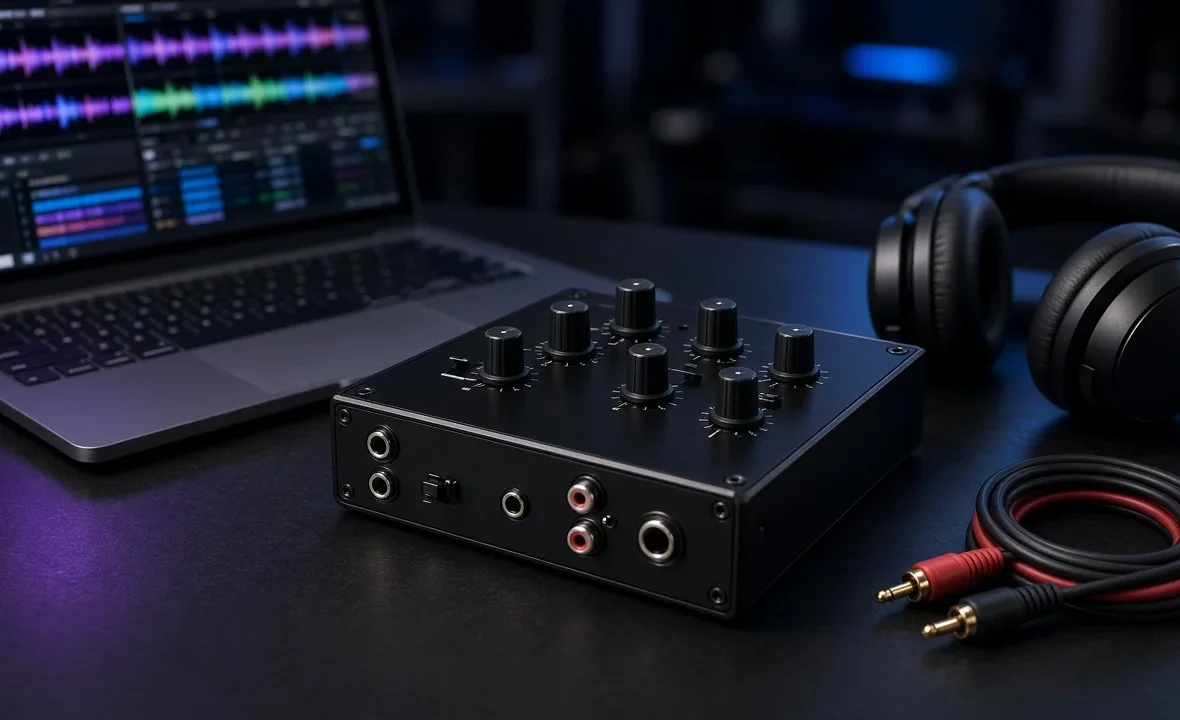
A DJ audio interface gives your computer two separate stereo outputs: one for the speakers and one for your headphones, so you can cue the next track privately. Almost every DJ controller and club mixer has one built in. You only need a separate interface for laptop-only DJing, DVS turntable setups, or multi-output studio rigs.
What a DJ Audio Interface Actually Does
An audio interface converts digital audio from your computer into analogue signals your speakers and headphones can use — and often the other way round, too. For DJing, the key feature is multiple independent outputs. Your DJ software sends the live mix to output 1–2 (speakers) and the track you’re cueing to output 3–4 (headphones). Without that split, the crowd hears everything you hear.
A good interface also brings better converters, lower latency, proper line-level outputs that won’t hum, and, on some models, phono inputs for turntables. If you’re choosing software at the same time, our DJ software guide explains which apps support which hardware.
Do You Need One? It Depends on Your Setup
| Your setup | Need a separate interface? | Why |
|---|---|---|
| DJ controller (e.g. DDJ-FLX4) | No | Sound card is built in, with master and headphone outputs |
| Standalone player | No | Doesn’t use a computer for audio at all |
| Club mixer with USB (e.g. DJM-900NXS2, DJM-A9) | No | Mixer has its own multichannel sound card |
| Laptop only, no controller | Yes, ideally | Laptop has only one stereo output |
| Turntables or CDJs with DVS | Yes, unless the mixer has one | Needs inputs for timecode and outputs per deck |
| MIDI-only controller (no audio) | Yes | The controller sends commands, not sound |
If you’re starting out with a controller, skip the interface and spend the money on decent headphones or speakers. Our DJ gear for beginners guide covers what’s worth buying first.
The Cheap Fix: Splitter Cables (and Why They’re Limited)
Some DJ apps can split your laptop’s single headphone jack into two mono signals: the left channel carries the master, the right carries the cue. A cheap DJ splitter cable then sends each side to a different place. It works, and it’s a fine way to try DJing for almost nothing — but everything becomes mono, the laptop’s headphone amp is weak, and plugging a headphone jack into a PA invites noise. Treat it as a stopgap, not a gig setup.
What to Look For in a DJ Sound Card
- At least two stereo outputs — four channels out — for master and cue.
- A dedicated headphone output with its own volume control.
- Software support. Check your app’s hardware list. Some interfaces also unlock paid software features.
- Phono/line switchable inputs if you’ll ever use turntables or DVS. See our timecode vinyl and DVS guide.
- Stable low-latency drivers — ASIO on Windows, class-compliant on macOS.
- 24-bit converters at 44.1 or 48 kHz are plenty for DJing.
- Bus power over USB keeps your bag lighter, but powered units are often quieter.
The market has shifted. Native Instruments’ long-running Traktor Audio 6 and Audio 10 have been discontinued, while newer compact units keep appearing — Reloop’s Flux Go, for example, is a two-channel Serato DVS interface with switchable phono/line inputs that went on sale in early 2026. Always check current availability and compatibility before you buy. Thailand buyers can compare stock in our guide to where to buy DJ gear in Bangkok.
Setting It Up
- Install the driver (if needed) before plugging in.
- In your DJ software’s audio settings, select the interface and route Master to outputs 1–2 and Cue/Headphones to 3–4.
- Set the buffer size low enough to feel responsive but high enough to avoid crackles. Start around 5–10 ms. If you hear clicks, see fixing DJ audio dropouts.
- Connect outputs with balanced cables where possible. Our DJ cables guide explains the options.
- Gain stage properly so the interface isn’t clipping before the speakers.
A Note From NaJade
Years ago I tried to DJ a friend’s party with just a laptop and a splitter cable, because my controller was in for repair. It technically worked. It also sounded thin, the headphone side was barely audible, and I spent the night guessing. That evening taught me more about why sound cards matter than any spec sheet. These days I tell students the same thing: if you own a controller, you already have what you need, so don’t let a shop talk you into an extra box. If you’re going laptop-only, DVS, or recording multitrack, then a proper interface is one of the best-value upgrades you’ll make. Buy for the setup you actually play, not the one in the advert.
Related: connecting a DJ controller to speakers, the best laptop for DJing, how to record a DJ mix, and the home DJ setup guide. Further reading: Digital DJ Tips on sound cards for digital DJs.
Frequently Asked Questions
Do I need an audio interface to DJ?
What is the difference between a sound card and an audio interface?
Can I DJ with just my laptop’s headphone jack?
Does my DJ controller have a built-in sound card?
What audio interface do I need for DVS?
What buffer size should I use for DJing?
About the Author
NaJade is a Bangkok-based DJ playing progressive house, melodic EDM, pop, and Thai music across clubs, rooftops, and weddings in Thailand. He teaches beatmatching and mixing to beginners both in person in Bangkok and online over Zoom. When he’s not behind the decks, he’s documenting the journey on YouTube, Instagram, and TikTok.