
By NaJade · DJ in Bangkok · Published November 11, 2026
This guide is part of the DJ software guide.
Your controller does what someone else decided. MIDI mapping is how you change that.
Every DJ controller arrives with a factory mapping: this button plays, that knob filters, those pads trigger hot cues. For most people it’s fine. But sooner or later you want a pad to do something different, a spare knob to control an effect, or a second little controller to sit beside your main one. MIDI mapping is the tool for all of that, and every major DJ app has it built in.
To MIDI map a DJ controller, open your software’s MIDI or controller settings, enter learn or assign mode, click the on-screen function you want, then press or turn the control on your hardware. Save the mapping as a preset. Map like for like — buttons to buttons, knobs to knobs — and keep a backup of the default.
What MIDI Mapping Actually Is
MIDI is the language almost every DJ controller uses to talk to your laptop. When you press a pad, the controller sends a small message — essentially “control number 36, pressed”. The software then decides what that message does. A mapping is the list of those decisions. Change the list, and the same hardware does something new. The MIDI Association maintains the standard, which is why one controller can work with many apps.
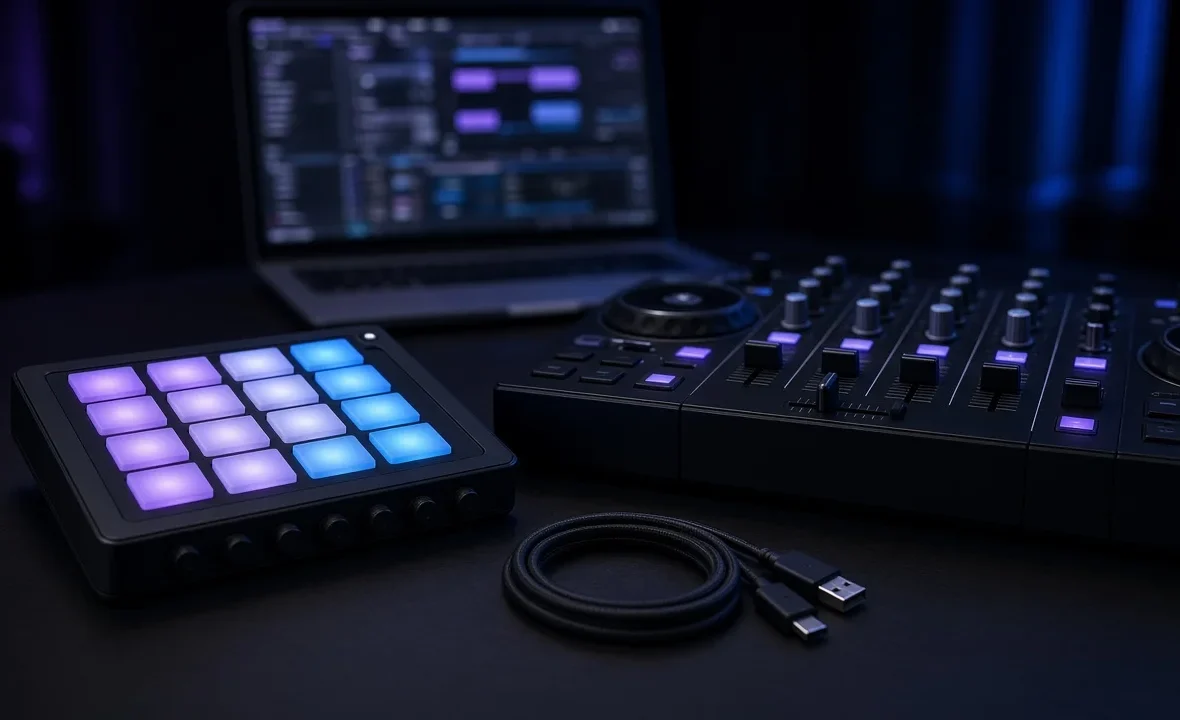
Two kinds of hardware matter here. Plug-and-play controllers built for a specific app (a DDJ-FLX4 in rekordbox or Serato, for example) come pre-mapped and may only let you change some controls. Generic MIDI controllers — small pad or knob boxes — arrive blank and need mapping before they do anything.
Before You Start
- Update your software and controller firmware. Many “mapping problems” are old drivers.
- Back up the default mapping or note how to restore it. You will want it back one day.
- Plan on paper first. Write down which control should do what. Random mapping creates a controller you can’t remember under pressure.
- Match control types. Buttons to buttons, knobs to knobs, faders to faders. A button mapped to a filter jumps from zero to full.
How to MIDI Map in Each App
| Software | Where to find it | How it works |
|---|---|---|
| Serato DJ Pro | SETUP › MIDI, then the MIDI button top-left | Click a function, move the control; box turns blue when assigned |
| rekordbox | The MIDI button at the top of the screen | Opens the MIDI settings; use LEARN, then move the control |
| Traktor Pro | Preferences › Controller Manager | Add a Generic MIDI device, add an assignment, click Learn |
| VirtualDJ | Settings › Controllers | Pick a control, then type or choose an action script |
In Serato DJ Pro, primary hardware needs “Allow Serato Hardware Remapping” ticked in the MIDI tab of SETUP first. Then click MIDI in the main window, click the function you want, and touch the control. Serato’s official MIDI mapping guide also explains how to map one control to several functions. Note that some things — jog wheels, shift buttons and pad-mode buttons — can’t be remapped.
In rekordbox, click the MIDI button, select your device, and use LEARN to capture the control you move. Deeper customisation of the default mapping is available on many supported controllers. For a wider look at the app, see the rekordbox review.
In VirtualDJ, mappings are short action scripts, which makes it the most flexible of the four — you can make one button do several things in sequence. The VirtualDJ review covers what else it does well.
Step by Step: Your First Mapping
- Connect the controller and open your DJ software.
- Create a new preset before you change anything, so you don’t overwrite the default.
- Enter learn or assign mode.
- Click the on-screen function — say, Deck 1 Echo on/off.
- Press the hardware control you want to use. The software captures the message.
- Exit learn mode and test it with music playing.
- Save the preset with a clear name, and export a copy to cloud storage or a USB.
Useful Mappings and Common Mistakes
| Idea | Why it helps |
|---|---|
| Spare knob → effect wet/dry | Hands-on control of effects without the mouse |
| Pad → loop roll or saved loop | Faster loop moves in a drop |
| Small pad box → samples | Air horns stay off your main pads |
| Button → key sync or BPM half/double | Quick fixes mid-mix |
The common mistakes: mapping over a function you rely on (and only finding out live), forgetting to save, and building a mapping so personal that you can’t play anyone else’s setup. Keep your changes small and purposeful. If you’re still choosing hardware, start with the best DJ controller for beginners.
A Note From NaJade
I resisted MIDI mapping for years because I thought it was for producers and button-mashers. Then I added a small pad controller next to my main setup for a wedding — one pad for a mic-friendly echo out, one for a short sample, one to kill the low end. Three mappings, and that whole night felt calmer. That’s the point. You don’t need to rebuild your controller from scratch; you need two or three changes that fix the moments where you always reach for the laptop. Map those, practise them for a week, and save the preset somewhere you can find it the night your laptop decides to forget.
Related: the DJ software guide, the Serato DJ review, what hot cues are, and how to use DJ effects. Also useful: the VirtualDJ controllers manual.
Frequently Asked Questions
What does MIDI mapping mean for DJs?
Can I MIDI map any controller?
How do I MIDI map in Serato DJ Pro?
Does rekordbox support MIDI mapping?
Will MIDI mapping break my controller?
Should beginners MIDI map their controller?
About the Author
NaJade is a Bangkok-based DJ playing progressive house, melodic EDM, pop, and Thai music across clubs, rooftops, and weddings in Thailand. He teaches beatmatching and mixing to beginners both in person in Bangkok and online over Zoom. When he’s not behind the decks, he’s documenting the journey on YouTube, Instagram, and TikTok.