
By NaJade · DJ in Bangkok · Published September 29, 2026
The right cables and the right output — a simple setup most beginners overthink.
You’ve got your controller and a pair of speakers, and now you’re staring at a row of ports wondering what plugs into what. Good news: connecting a DJ controller to speakers is genuinely simple once you know which output to use. The mistake most beginners make is using the wrong one (or trying to route sound through their laptop). Here’s the correct way, step by step.
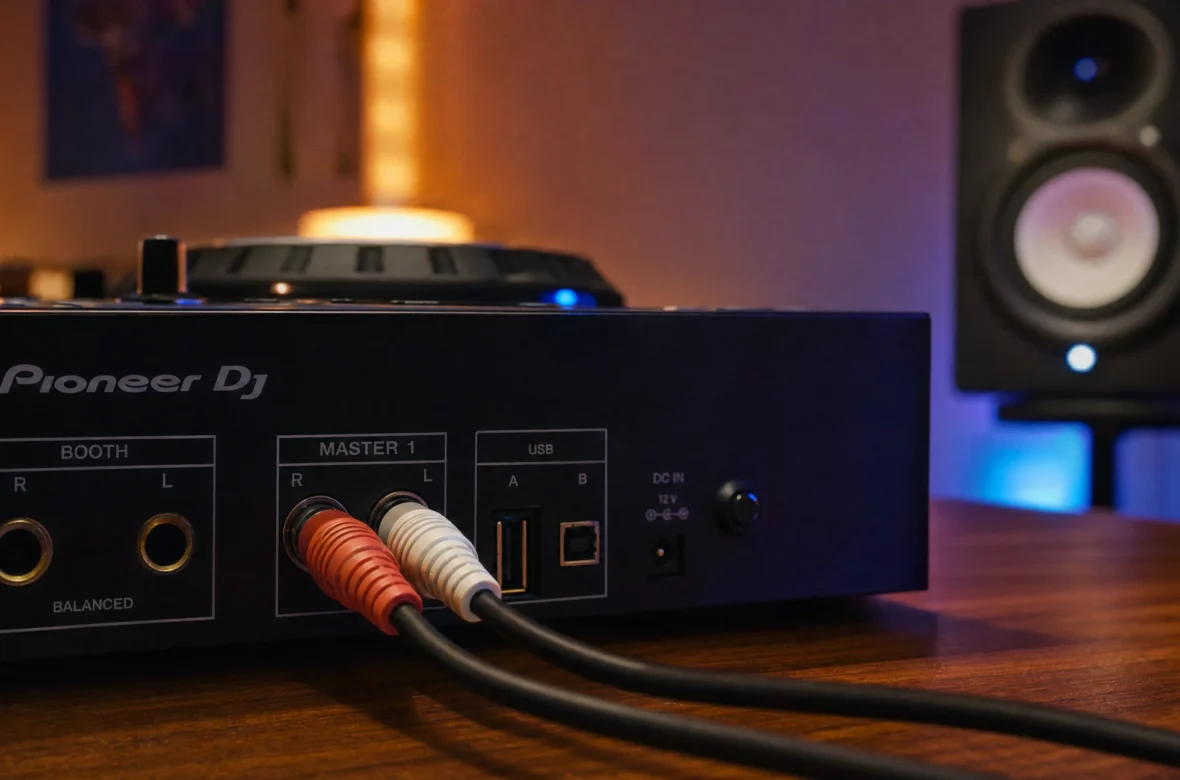
To connect a DJ controller to speakers: plug the controller into your laptop via USB, then run a cable from the controller’s master output (usually RCA) to the input on your powered speakers. Use RCA cables for RCA inputs, or an RCA-to-TRS/XLR adapter cable if your speakers use those. Never connect speakers to your laptop’s headphone jack, and never plug a controller into a phono input. Let’s break it down.
The Basic Three-Cable Setup
For 90% of home setups, the whole thing comes down to three connections:
- Controller → laptop via USB. This carries both the data and (for most controllers) the power, so no separate adapter needed. Your DJ software should detect it automatically.
- Controller’s master output → speakers. This is the connection that carries the sound your audience hears. On most controllers it’s a pair of RCA jacks on the back.
- Headphones → controller’s headphone jack. Your headphones plug into the controller, not the laptop, so cueing works.
That’s it. The single most important rule: your speakers connect to the controller’s master output, NOT to your laptop’s headphone jack. The controller is your sound card — the master output is what carries the proper mixed signal.
Step 1: Powered or Passive Speakers?
Before cabling, know which type of speakers you have, because it changes the setup:
- Powered (active) speakers have a built-in amplifier. You can connect your controller directly to them. This includes most studio monitors and modern PA speakers — and it’s by far the easiest option for beginners.
- Passive speakers have no built-in amp, so you must connect them to a separate power amplifier first, then connect the controller to the amp. More gear, more complexity.
For a home setup, powered studio monitors are the simplest choice — plug and play, no separate amplifier to worry about.
Step 2: Match the Cable to the Ports
Look at your controller’s master output and your speakers’ input, and match them up. As Sweetwater explains, the most standard output on a DJ controller is RCA (an unbalanced signal). Common scenarios:
- Controller RCA → speaker RCA: use a standard RCA cable (red and white connectors). The simplest case.
- Controller RCA → speaker TRS (¼-inch) or XLR: use an RCA-to-TRS or RCA-to-XLR adapter cable.
- Controller XLR out → speaker XLR: some higher-end controllers have balanced XLR master outputs — use XLR cables for the cleanest signal.
Always connect left to left and right to right for proper stereo. And make sure each plug is pushed in snugly — loose connections are the cause of most “why is there no sound?” panics.
Balanced vs Unbalanced: Why Cable Length Matters
One bit of theory worth knowing. RCA cables are unbalanced — fine for short runs, but you shouldn’t run them longer than about 15 feet (4m), or you risk static, buzzing, hum, and interference. XLR and TRS cables are balanced and can run much longer distances cleanly. For a home setup with speakers right next to you, unbalanced RCA is perfectly fine. If you ever need a long cable run (a bigger room or a gig), use balanced connections, or a DI box to convert the signal.
The Two Big “Don’ts”
- Don’t plug into a phono input. A DJ controller is a line-level source. Plugging it into a “phono” input (designed for turntables) amplifies an already-amplified signal — it’ll sound terrible and could damage gear. Always use a “line” input.
- Don’t run sound through your laptop’s headphone jack. It bypasses the controller’s sound card, kills your ability to cue in headphones, and sounds worse. The master output exists for exactly this reason.
Step 3: Set Your Software’s Audio Output
Last step, and an easy one to forget. In your DJ software’s audio settings, make sure the output is set to your controller’s sound card, not your laptop’s built-in audio. This routes the master mix out through the controller (to your speakers) and your cue to the headphones. If you’ve cabled everything correctly but still get no sound, this setting is the usual culprit.
What About Bluetooth Speakers?
Tempting, but not recommended. Bluetooth introduces latency (a delay) that makes monitoring and beatmatching unreliable, and the connection can drop. You can do it in a pinch if your controller or an adapter supports it, but for anything serious, use a wired connection to powered speakers. Save Bluetooth for casual listening, not mixing.
A Note From NaJade
I remember the first time I connected my setup and got nothing but silence — convinced something was broken. It was the software output setting, every time. Once you’ve done it once, it’s second nature: USB to the laptop, RCA out to the speakers, headphones into the controller, and point the software at the controller’s sound card. Four things. Don’t let the wall of ports intimidate you — you only ever use a few of them, and the rest you can happily ignore while you’re learning.
If you haven’t decided on speakers yet, read do you need speakers to start DJing first — you might not need them as soon as you think. And once you’re set up and ready to mix, start with how to beatmatch. Want a faster start? My DJ lessons run in person in Bangkok or online over Zoom.
Frequently Asked Questions About Connecting a DJ Controller to Speakers
How do I connect my DJ controller to speakers?
What cable do I need to connect a controller to speakers?
Can I connect speakers to my laptop’s headphone jack instead?
Do I need powered or passive speakers?
Why is there no sound from my DJ controller?
Can I use Bluetooth speakers to DJ?
About the Author
NaJade is a Bangkok-based DJ playing progressive house, melodic EDM, pop, and Thai music across clubs, rooftops, and weddings in Thailand. He teaches beatmatching and mixing to beginners both in person in Bangkok and online over Zoom. When he’s not behind the decks, he’s documenting the journey on YouTube, Instagram, and TikTok.